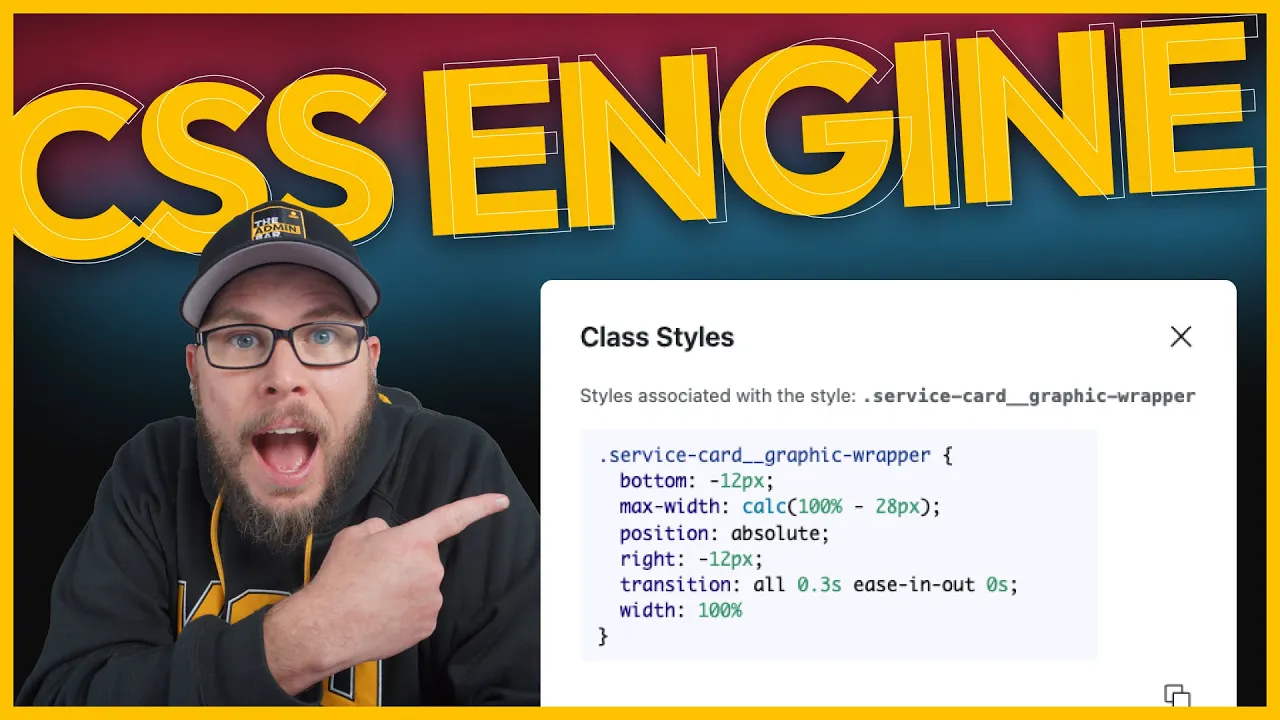
While experimenting with the new alpha releases of GenerateBlocks, I stumbled upon a feature that unlocks some unexpected superpowers. With the new class system in GenerateBlocks, you can use it as a CSS engine to style third-party blocks directly inside the builder.
This approach allows you to apply advanced styles to blocks that don’t offer many customization options, all without needing to write custom CSS. Let’s dive into a demo to see how this works and explore a practical use case.

Styling Core Blocks with GenerateBlocks
The Problem with Core Blocks
If you’ve ever used the core paragraph block in WordPress, you’ll know it has limited styling options compared to GenerateBlocks’ headline block. While the paragraph block has seen improvements, it still doesn’t offer the same level of control.
With GenerateBlocks’ class system, you can create styles using its advanced controls and apply them to core blocks—or any third-party blocks—without needing to write CSS manually.
Setting Up a Test Paragraph
- Add a headline block to the page.
- Change the block type to a paragraph and add some placeholder text (e.g., “Testing”).
- Create a new class called
test-paragraphand start with a blank style.
Styling the Paragraph
Using GenerateBlocks’ controls, style the paragraph:
- Text Color: Blue.
- Font Size: 40px.
- Font Weight: Bold.
- Letter Spacing: 2em.
- Background Color: Add a background for visibility.
- Transform: Rotate the text slightly for demonstration purposes.
Once the class is set up, save it and delete the headline block—it was only used to create the styles.
Applying the Class to a Core Paragraph Block
- Add a core paragraph block to the page.
- Go to the block’s Advanced settings and paste the
test-paragraphclass into the CSS class field.
The paragraph block now inherits all the styles you created using GenerateBlocks.
Practical Use Case: Styling Yoast Breadcrumbs
The Problem with Yoast Breadcrumbs
The Yoast breadcrumbs block is a great tool for adding navigation to your site, but it offers no styling options. It simply inherits your default paragraph and link styles, which can be limiting.
Using GenerateBlocks, you can create a custom style for breadcrumbs and apply it to the Yoast block.
Setting Up the Breadcrumbs Style
- Add a headline block to the page.
- Change the block type to a paragraph and add placeholder text (e.g., “Breadcrumbs”).
- Create a new class called
breadcrumband start with a blank style.
Styling the Breadcrumbs
Customize the typography:
- Font Weight: Bold.
- Font Size: 0.8rem.
- Text Transform: Uppercase.
- Letter Spacing: 0.5em.
Styling Links and Hover States
Breadcrumbs often include links, so it’s important to style them:
- Select the
breadcrumbclass and click on the Links selector. - Remove the underline by setting Text Decoration to none.
- Change the link color to red.
- Click More and select Hovered Links.
- Change the hover color to blue.
Save the class once all styles are applied.
Applying the Class to Yoast Breadcrumbs
- Add the Yoast breadcrumbs block to the page.
- Go to the block’s Advanced settings and paste the
breadcrumbclass into the CSS class field.
The breadcrumbs block now reflects the custom styles you created, including the typography changes and link hover effects.
Why This Is Powerful
This feature may not have been an intended use of GenerateBlocks, but it opens up a world of possibilities. You can now style third-party blocks directly inside the builder, using GenerateBlocks as a CSS engine.
Key Benefits
- Advanced Styling: Apply GenerateBlocks’ controls to blocks with limited options.
- Consistency: Maintain a cohesive design across your site.
- Ease of Use: Style blocks without writing custom CSS.
Final Thoughts
This approach is a game-changer for working with third-party blocks. Whether you’re styling core blocks, Yoast breadcrumbs, or other plugins, GenerateBlocks gives you the tools to create custom styles directly in the editor.
If you use third-party blocks that lack styling options, I encourage you to try this method. It’s a simple way to enhance your designs without leaving the builder.
Start experimenting with this system and see how it can transform your workflow.

Kyle Van Deusen
After spending 15 years as a graphic designer and earning a business degree, I launched my agency, OGAL Web Design, in 2017. A year later, after finding the amazing community around WordPress, I co-found The Admin Bar, which has grown to become the #1 community for WordPress professionals. I'm a husband and proud father of three, and a resident of the Commonwealth of Virginia.
Use of AI: AI helps me outline, research, catch typos, and find better words & phrases. I take full personal responsibility for all my published content (the good, the bad, and the em dashed).