Repeat after me: Privacy compliance is your client’s responsibility, not the web agency’s responsibility.
Good.
However, you – the web professional – have all the power over that client’s website and its wellbeing. Which leads me to Uncle Ben’s famous advice:

I may have paraphrased slightly, but *Spoiler alert from 2002*, maybe Uncle Ben would’ve made the sequels had he been more specific.
While you’re under no obligation to become your client’s privacy consultant, it’s always a good idea to help them identify and reduce privacy risks on their website before one Tobey Maguire crying face turns into two.

Now let’s repeat something else: My time is valuable, and I will not work for free.
This reminds me of Uncle Ben’s less-famous piece of advice:

Okay… he definitely didn’t say that.
But Peter clearly heard something along those lines because the first thing he did after getting superpowers was enter a cage match for cash. So responsibility. Profit. Tomato. Tomahto.
The point is this: anything worth doing takes time and effort, and a proper website privacy review is absolutely worth doing. It protects your client, demonstrates your expertise, and helps keep your agency safe from getting a nasty email after a demand letter arrives.
Best of all, it’s a service clients are increasingly willing to pay for.
In this article, we will go through the 7 steps needed to do a full privacy review and how you can go about charging new onboarding clients for this valuable service.
P.S. Termageddon and TAB partnered up for a webinar on a very similar topic. If you’d rather watch and listen, you can tune in to the $30,000 mistake hiding in your cookie consent banner.

Step 0: Not legal advice disclaimers
We already touched on this, and technically it isn’t part of the review itself. But it is the most important step before you start talking about privacy.
Just like every article I write comes with the disclaimer:
*This article is not legal advice
Your conversations with clients should start the same way.
Before discussing privacy compliance, always make sure your client understands three things:
- You’re not an attorney. Nothing you’re saying should be interpreted as legal advice.
- Your role is to identify potential risks and point them toward possible solutions. If they want legal advice specific to their business, they should consult their own attorney.
- Get it in writing. Have the client sign a waiver or acknowledgment stating that you are not providing legal advice and that you’ve recommended they seek legal counsel if needed. Besides setting expectations, it also creates a paper trail showing that the conversation took place.
It might feel a little awkward at first, but this ensures everyone gets to sleep a little better at night.
Now that we’ve finished the exciting episode of “How to Protect Your Arse: The Legal Disclaimer Edition,” let’s move on to the seven steps.
Step 1: Review the website
Before you recommend anything, you need to understand what’s actually happening on the website.
Look for every third-party script that’s loading, including:
- Google Analytics
- Meta Pixel
- TikTok Pixel
- LinkedIn Insight Tag
- Hotjar
- Microsoft Clarity
- Live chat widgets
- Embedded videos
Looking for these scripts is actually pretty easy. All you have to do is open the web page in an incognito window > right click > Inspect > Network Tab (and cookies tab). From here you will see all the third-party trackers being added to your browser.
Simply checking the home page will usually identify 90%+ of all third-party URLs being used by a website, but it is a good idea to check all pages. You can either show your client how to do this, or do it yourself and charge for the time.
Once you’ve identified the cookies, place them all into an Excel or Google Sheets document so that your clients can easily digest how many scripts their website is firing.
Many clients have no idea these are even there. Some are leftovers from agencies past. Others were installed years ago to track a Facebook ad and then quietly forgotten after it failed spectacularly.
Step 2: Minimize exposure
Once you’ve made your list, ask a simple question:
Does the client actually use this?
If not… Delete it.
Every unnecessary tracking script creates additional privacy exposure, slows down the website, and makes compliance more complicated. With lawsuits from laws like CIPA also exploding, simply having third-party scripts on your site is now considered high risk.
Privacy reviews aren’t always about adding things. Often times the biggest improvement come from removing things.
If the client simply HAS to have a certain tracking tool, there are usually privacy-friendly alternatives to most of the popular ones.
Remember that excel document from earlier? You can also add a column with “kept,” “deleted,” or “replaced”
Step 3: Propose a solution
After removing unnecessary scripts and replacing others with privacy-friendly alternatives, if the site is still collecting data (like through a contact form or via a third-party script embed), getting proper policies and a consent tool in place is the next best move.
Generally speaking:
- If the website loads non-essential tracking technologies, it likely needs a cookie consent solution.
- If it collects personal information through forms, purchases, newsletters, appointments, or account creation, it needs properly maintained legal policies.
Remember, you’re not giving legal advice. You’re presenting options.
Some clients may want to work directly with an attorney. Others may prefer an automated solution like Termageddon that generates policies and keeps them updated as privacy laws change. It’s up to them in the end.
Step 4: Set up everything properly
Consent (aka cookie) Banners
A consent banner that doesn’t work is just annoying. Like a smoke detector with no batteries. If there’s a fire, it ain’t detecting!
For any banner installed, verify that:
- Non-essential tracking scripts are blocked until consent is given.
- There’s an “Accept” and “Decline” option (not just an “Okay!”)
- Users can change their privacy settings (and it actually makes those changes… you’d be surprised).
How do you verify?
Visit the site in a fresh incognito > right click > Inspect > Network tab > Refresh.
Do you see third-party URLs? Then the banner needs to be fixed. Don’t see third-party URLs until after consent? You’r lookin good!
Privacy Policy (and likely a Cookie Policy, too)
Make sure the website has a Privacy Policy that was created specifically for that website and has been updated recently. No copy & paste jobs or templates that still have *insert business name in the first paragraph.
You’ll also want to make sure all forms and footer links include hyperlinks to the correct policies.
Step 5: Determine consent footprint
Not every client needs the exact same configuration.
Some businesses choose to display consent banners worldwide for consistency. Others only show them to visitors in places where consent is legally required, such as California or to users protected by GDPR.
Discuss the options with your client and configure the experience that makes the most sense for their business.
Step 6: Test consent
Just like any technology we add to a site, testing is a critical step when installing a consent banner. You can do this by doing the following:
- Open the web page in an incognito window
- Check to see if all cookies are set to off by default (on the banner)
- Right click > Inspect > Network tab > Refresh to verify they aren’t loading
- Return to the cookie banner and “Accept” certain or all cookies
- Right click > Inspect > Network tab > Refresh to verify the cookies you accepted are now loading.
Reminder: Cookies should never be firing on a page before an “Accept” is selected.
It’s super easy for web agencies to see if they are working and, more worryingly, easy for opportunistic attorneys to see if they’re working properly.
Step 7: Showcase results to your client
Once everything is complete, record a quick walkthrough.
Show them:
- What you found.
- What you removed.
- How consent now works.
- Where their policies live.
- What changed.
Tip: It’s often helpful to actually record yourself (via Loom, for example) and show how you test whether or not scripts are firing on a particular page. Then send this video to your client with a “now it’s your turn” comment. This handoff is key to letting your client know that your part in the website review is done, and it’s now up to them to perform tests.
This gives the client confidence that real work was done and makes your service feel much more valuable than a simple invoice ever could.
Finish by encouraging them to test it themselves and let you know if they notice anything unusual.
So… What Should You Charge?
Ah, the million-dollar question. Well.. probably more like $500 to $1,000-ish question.
Short answer: It’s entirely up to you.
To determine if you want to offer this or not to your customers, you should do an audit for your own agency website. It will be tough the first time around, but after you learn how to set up a proper set of policies and consent for your website, it becomes extremely liberating and a value add for your agency.
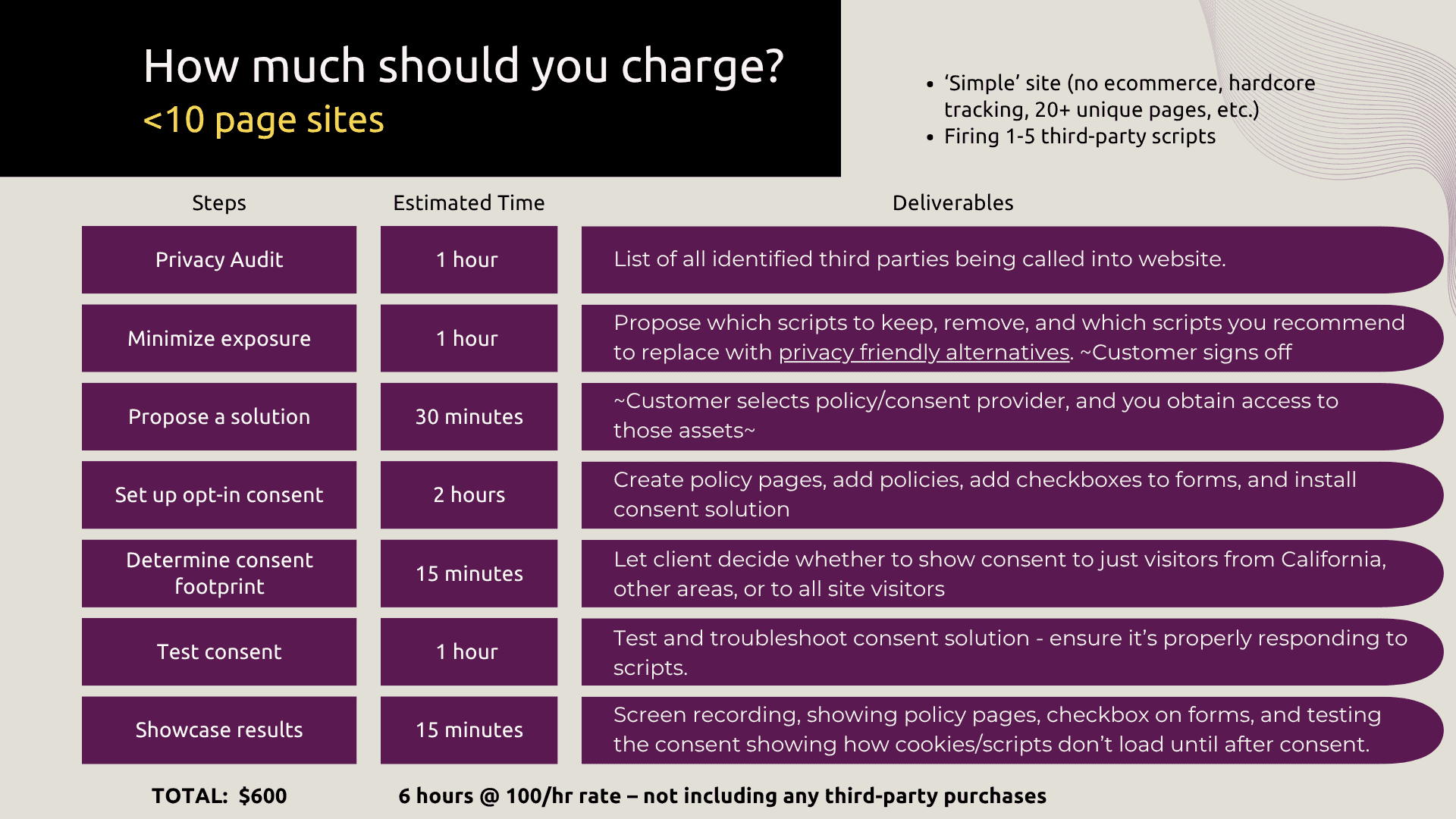
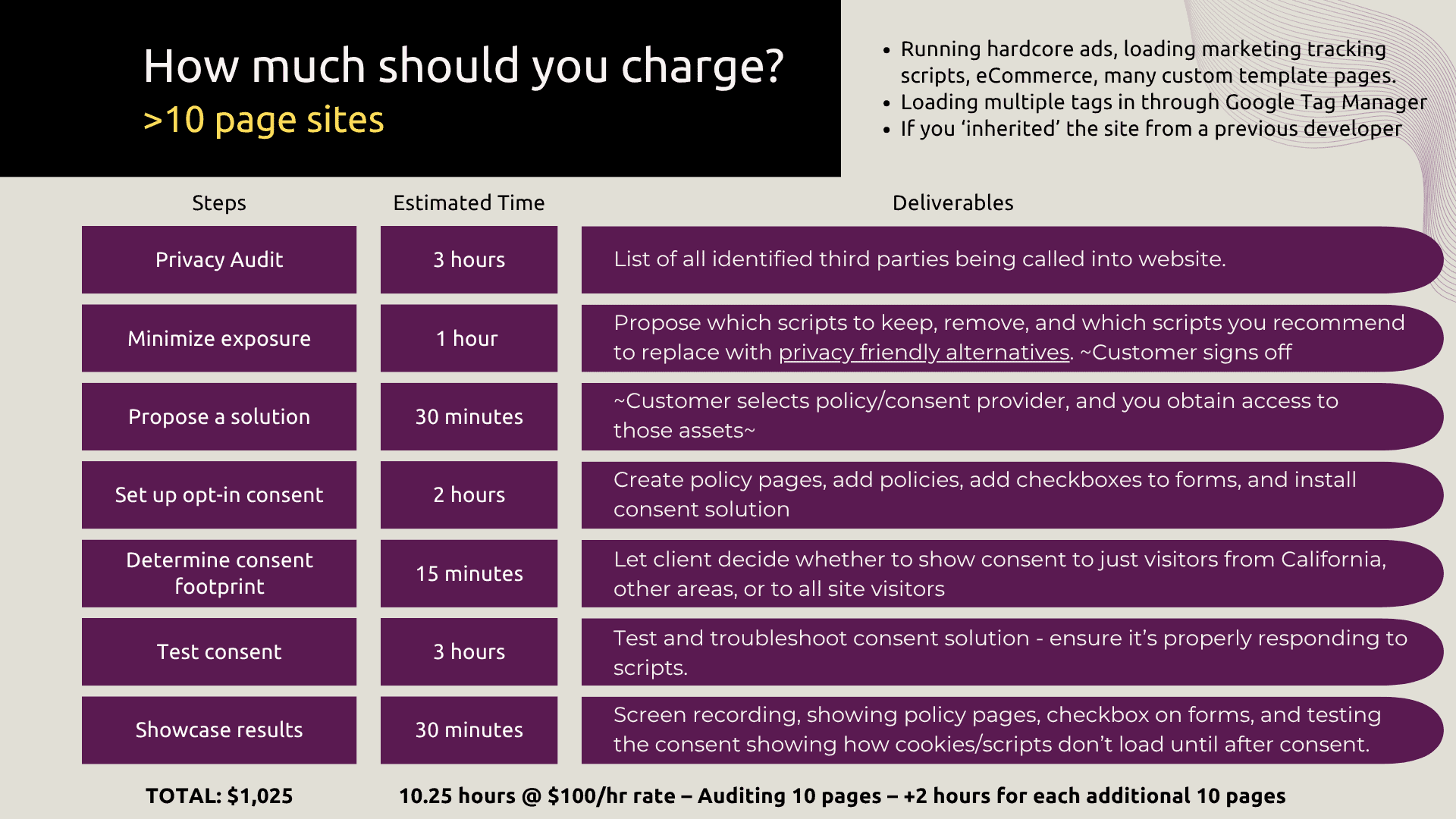
If it were us, though, we’d probably estimate it out like the following.
Simple Websites (less than 10 pages, not running hardcore ads, etc.)
Advanced websites (>10 custom page templates, running ads through Google Tag Manager, etc.)
Whichever pricing model you choose, remember this:
You’re not charging clients for clicking through a checklist. You’re charging them for your experience, your attention to detail, and the peace of mind that comes from having someone who knows what to look for.
Considering the growing number of privacy lawsuits, demand letters, and $30,000 mistakes hiding in your Cookie Banner, that’s a service plenty of businesses are happy to invest in.
In conclusion:
Look, I know none of us got into web design and maintenance just to deal with regulations. But they’re here, whether we like it or not.
But remember, with great power comes great responsi-profitability
Hopefully, this outline (and TAB interview) is helping give you a blueprint, or at least a foundation, on how to consider embracing these regulations, adding value to your customers, adding more revenue in your pocket, and most importantly, protecting your customers!

Trevor Willingham
Trevor is the marketing coordinator at Termageddon. Ever since he was a wee lad, Trevor dreamed of promoting Privacy Policies and now he's doing just that. In other words, he started from the bottom and now he's in website footers.