As you start using the new class system in GenerateBlocks, you might encounter sections you created before the system existed or find yourself accidentally styling elements at the block level instead of using classes. Thankfully, GenerateBlocks has a built-in system that makes it easy to transfer block-level styles into classes, allowing you to reuse those styles across your entire website.
In this post, I’ll walk you through how to move block-level styles into classes step by step.

The Problem with Block-Level Styles
When you style elements at the block level, those styles are tied to that specific block. This makes it difficult to reuse the same styles elsewhere on your site. By moving these styles into a class, you can apply them to multiple elements and make global updates with ease.
Demo Setup
For this demo, I’ve set up a container with an inner container.
Block-Level Styles Applied
- Inner Container:
- Background color.
- Border radius.
- Padding.
- Headline: Styled individually at the block level.
- Button: Styled individually at the block level.
The goal is to move these block-level styles into classes so they can be reused across the site.
Moving Styles to a Class
Step 1: Create a Class for the Container
- Select the container.
- Scroll to the top of the settings panel and add a class name (e.g.,
CTA-wrapper). - Click Create.
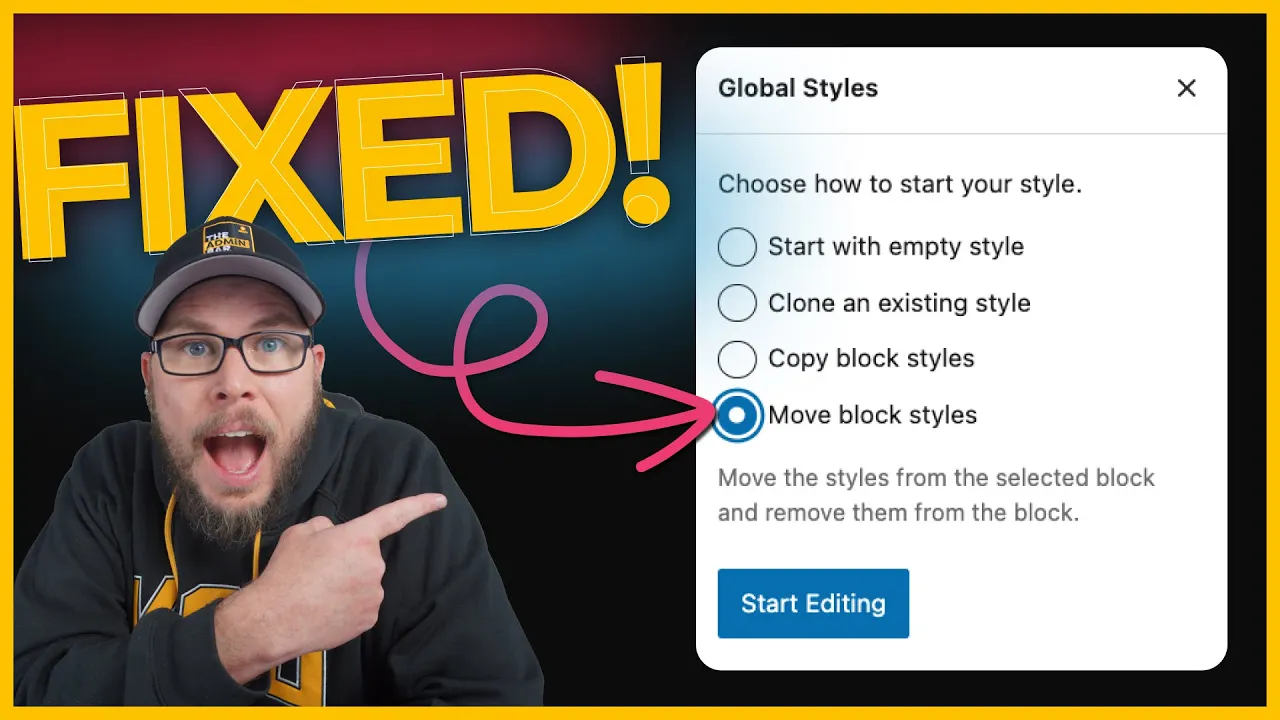
When you create a class, you’ll see four options:
- Empty Style: Start with a blank class.
- Clone Existing Style: Copy styles from another class.
- Copy Block Styles: Copy styles from the block to the class (styles remain on both).
- Move Block Styles: Move styles from the block to the class (styles are removed from the block).
Since we want to transfer the styles entirely to the class, select Move Block Styles and click Start Editing.
Step 2: Verify the Styles in the Class
Once the styles are moved, you’ll be editing the CTA-wrapper class.
- Backgrounds: The background color is now part of the class.
- Spacing: Padding values have been transferred.
- Borders: The border radius is included.
If you check the block-level settings, you’ll see indicators showing that these properties are now controlled by the global style. The original values are no longer at the block level.
Repeating the Process for Other Elements
Headline
- Select the headline.
- Add a class name (e.g.,
CTA-heading) and click Create. - Choose Move Block Styles to transfer the styles to the class.
Button
- Select the button.
- Add a class name (e.g.,
CTA-button) and click Create. - Choose Move Block Styles to transfer the styles to the class.
The button’s styles, including padding, background colors, and hover states, are now part of the CTA-button class.
Why This System Is Useful
This system is incredibly intuitive and solves a common problem: updating older designs or fixing elements styled at the block level.
By moving styles into classes, you can:
- Reuse styles across your site.
- Make global updates quickly.
- Maintain a more organized and scalable design system.
Final Thoughts
Whether you’re updating sections created before the class system or correcting block-level styling habits, GenerateBlocks makes it easy to switch everything over to a class-based system.
This feature is a game-changer for improving your workflow and ensuring consistency across your site. If you haven’t started using classes in GenerateBlocks yet, now is the perfect time to dive in and take advantage of this powerful system.

Kyle Van Deusen
After spending 15 years as a graphic designer and earning a business degree, I launched my agency, OGAL Web Design, in 2017. A year later, after finding the amazing community around WordPress, I co-found The Admin Bar, which has grown to become the #1 community for WordPress professionals. I'm a husband and proud father of three, and a resident of the Commonwealth of Virginia.
Use of AI: AI helps me outline, research, catch typos, and find better words & phrases. I take full personal responsibility for all my published content (the good, the bad, and the em dashed).